Alright, picture this: it’s Friday night, you’ve just had a week, and all you want to do is binge that new show everyone’s talking about. You settle onto the couch, remote in hand, and confidently press the "Netflix" button on your TV... only to realize there isn't one. Your beloved, perfectly functional, aesthetically pleasing television just stares back at you with a blank, un-smart expression. It’s like discovering your trusty old car can’t connect to Bluetooth – you love it, but suddenly it feels a bit… behind the times. Ever been there? Yeah, me too, friend. It’s a classic case of a perfectly good piece of tech being relegated to "dumb" status simply because it doesn't have Wi-Fi built in.
And let's be real, throwing out a perfectly good TV just because it's not "smart" feels like a crime against humanity (and your wallet). So, what if I told you that you absolutely, positively do not need to shell out for a brand-new smart TV just to get your streaming fix? Nope, not at all! Your old faithful can absolutely be brought into the 21st century. It just needs a little brain boost, a digital upgrade, if you will. Think of it as giving your TV an education. Let's make that "dumb" TV a veritable genius, shall we?
Making Your Old TV Smart: The How-To
The good news is, there are several super easy ways to transform your non-smart TV into a streaming powerhouse. Most of these involve a small, relatively inexpensive gadget that plugs right into your TV. So, let’s dive into the fantastic world of making your TV think!
Option 1: The Magic Streaming Stick (or Box)
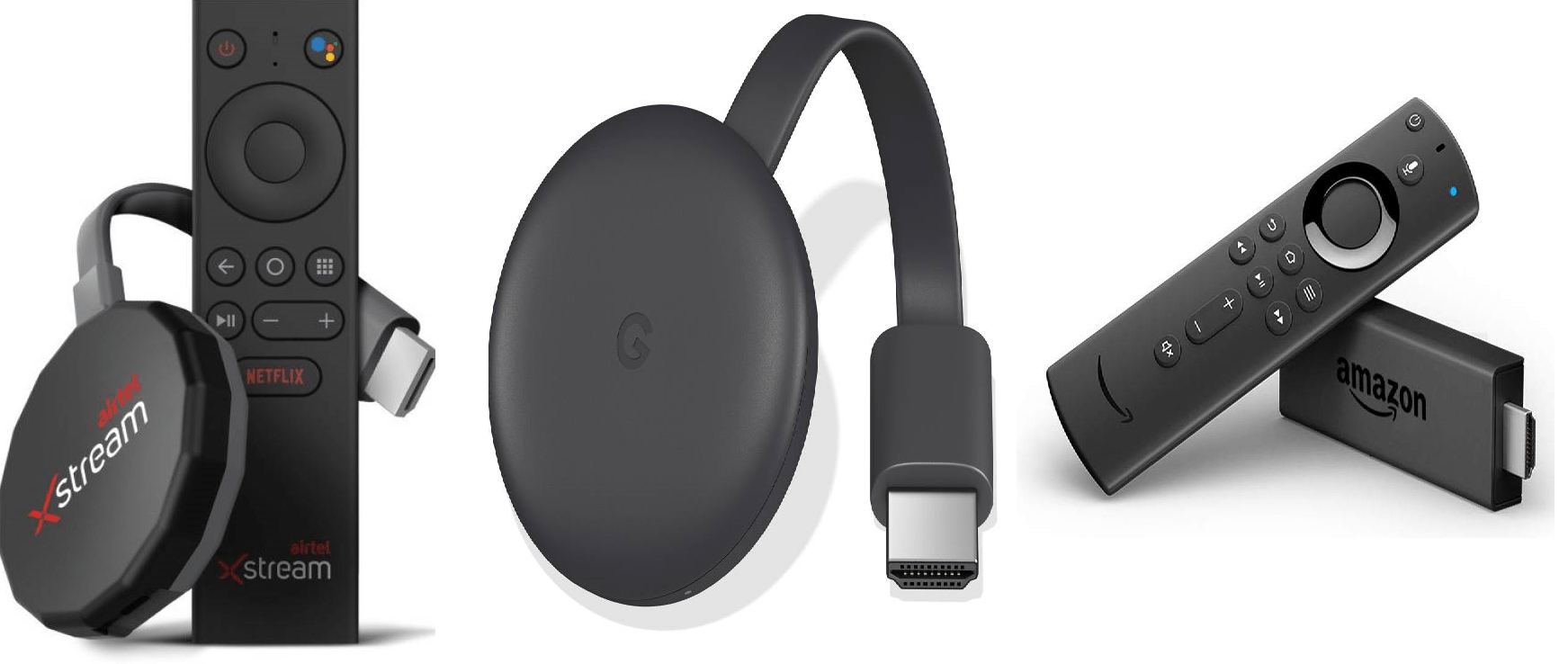
This is probably the most popular and straightforward method, and for good reason! You've likely seen these advertised everywhere. We're talking about devices like the Roku Stick/Express/Ultra, Amazon Fire TV Stick, Google Chromecast with Google TV, or even an Apple TV box. These little marvels are designed for one thing: making your TV smart.
How they work: You simply plug one of these into an HDMI port on the back or side of your TV, connect it to a power source (usually a USB port on your TV or a wall adapter), and then connect it to your home Wi-Fi. Voilá! Suddenly, your TV has access to Netflix, Hulu, Disney+, YouTube, and basically any streaming app you can dream of. They usually come with their own remote, making navigation a breeze. It’s truly a game-changer for older TVs!
Option 2: Your Gaming Console, Stealth Streamer
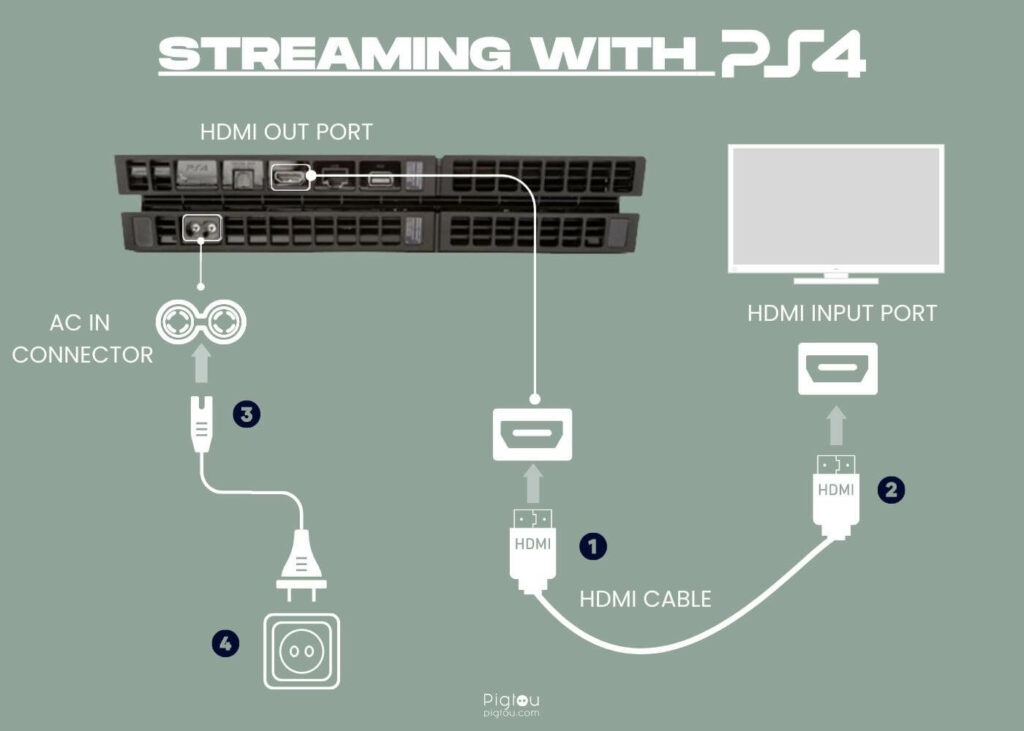
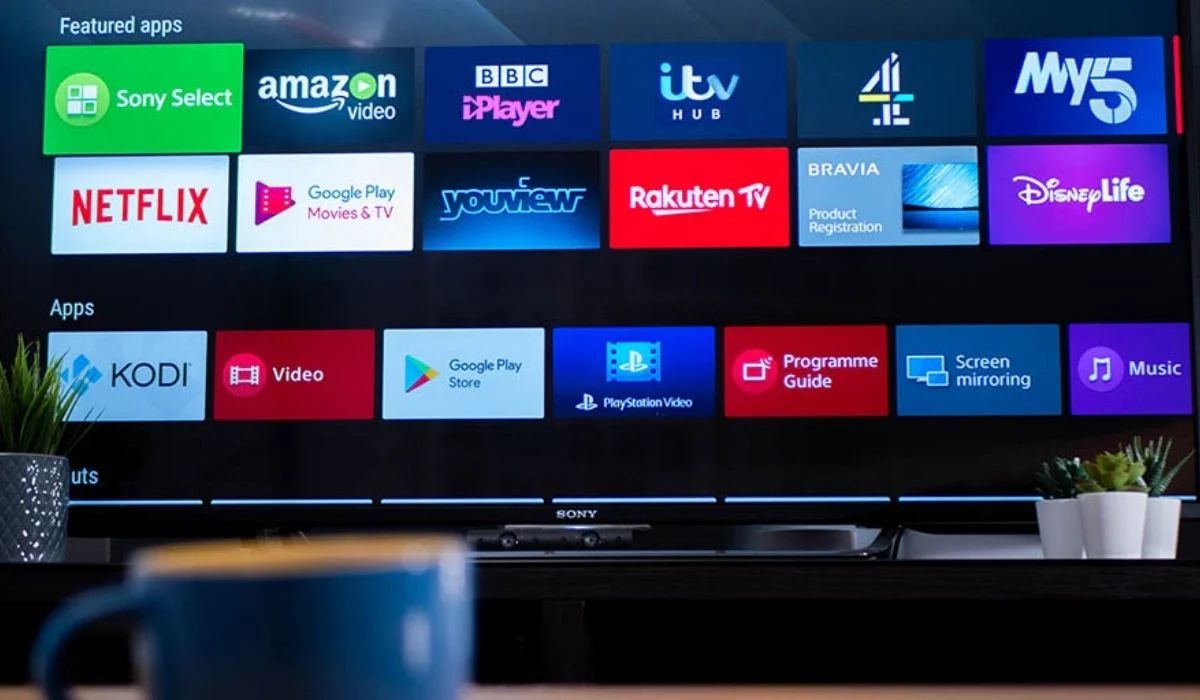
Got a PlayStation (PS4, PS5) or an Xbox (One, Series X/S) hooked up to your TV? Congratulations, you already have a powerful streaming device! Most modern gaming consoles come with built-in apps for all the major streaming services. It’s almost ironic, isn't it? That expensive console you bought for gaming often sits there, silently capable of delivering your favorite shows.
How they work: Just navigate to the console's app store or home screen, download your desired streaming app (like Netflix or HBO Max), log in, and you're good to go. The console uses your TV’s HDMI port, just like any other input, and leverages your home internet connection. Who knew your gaming obsession could also be your streaming savior? Talk about multitasking!
Option 3: The Humble Laptop Connection
Sometimes, the simplest solutions are right under our noses. If you have a laptop (or a desktop computer within cable reach), you've got a perfectly good streaming device. This method requires minimal extra investment, usually just a single cable.
How it works: Grab an HDMI cable (you probably have one lying around from an old DVD player or console). Connect one end to your laptop's HDMI output and the other end to an HDMI input on your TV. Then, simply switch your TV's input to that HDMI port. Your laptop screen will now be mirrored or extended onto your TV. Fire up Netflix, Max, or anything else on your laptop, and boom – instant big-screen viewing! You might need to adjust your laptop's display settings a bit, but it’s usually pretty intuitive. Plus, it gives you full control right from your keyboard.
Option 4: Phone/Tablet to TV Direct
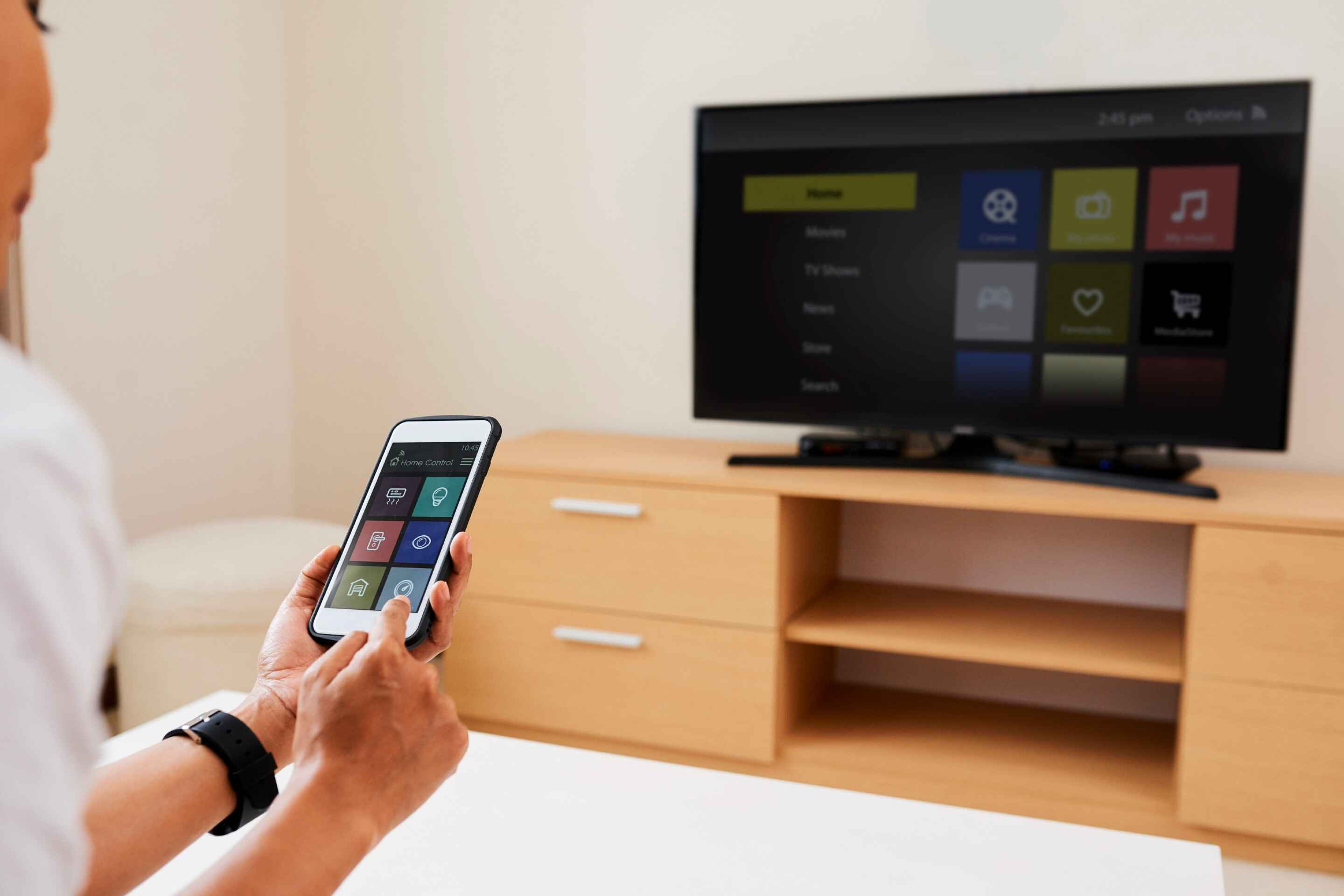
Your smartphone or tablet is already a tiny portable entertainment hub, so why not project it onto the big screen? This method is a bit more varied depending on your phone's capabilities, but it's definitely an option for many.
How it works: For Android users, some phones support MHL (Mobile High-Definition Link) or have a USB-C port that supports video output. You can buy specific MHL to HDMI or USB-C to HDMI adapters that will let you mirror your phone's screen directly to your TV via an HDMI cable. For Apple users, there's a Lightning Digital AV Adapter that does the same for iPhones and iPads. It's a bit more fiddly with cables, but it definitely gets the job done if you want to stream content directly from an app on your device.
Before You Dive In: Quick Checks!
Before you run off to buy a new gadget, just quickly check a few things on your TV:
- HDMI Ports: Does your TV have at least one available HDMI port? This is crucial for most of these solutions.
- Power Outlet: Will you have a power outlet nearby for the streaming device (if it needs one)?
- Wi-Fi: Do you have a reliable Wi-Fi network at home? Streaming needs internet, after all!
See? There's no need to banish your perfectly good, "dumb" TV to the basement or guest room. With just a small investment and a few minutes of setup, you can transform it into a streaming wizard. So go ahead, dust off that remote, pick your weapon of choice, and get ready to binge-watch to your heart's content. Your old TV (and your wallet) will thank you!