
Alright, folks, pull up a comfy chair, grab your imaginary coffee, because we're about to embark on a thrilling, slightly dusty, and surprisingly enlightening journey into the heart of your computer: its power supply! Specifically, we're tackling the age-old question that keeps tech enthusiasts and casual PC users alike scratching their heads: "How the heck do I check the watt of my power supply?"
Now, I know what you're thinking. "Watt? Is this going to involve complicated math or perhaps a small, controlled explosion?" Fear not! While your power supply is essentially a miniature, highly controlled electrical conversion unit (don't poke it with a fork, please), checking its wattage is usually far less dramatic than you'd imagine. Think less rocket science, more... reading a label. But we'll get to that.
Why Bother, You Ask? Because Knowledge is Power (Literally)!
Before we dive into the nitty-gritty, let's quickly touch on why you even care about this mysterious number. Imagine you've just bought the latest, shiniest graphics card, an absolute beast that promises to render worlds with breathtaking fidelity. You plug it in, hit the power button, and... nothing. Or worse, your PC sounds like it's trying to summon a small demon before flickering off. Chances are, your power supply simply isn't robust enough to feed that hungry new component. It's like trying to run a marathon on a single slice of toast – just not enough juice! Knowing your PSU's wattage prevents these sad, silent moments of tech despair.
Method 1: The "Peeking & Reading" (Or "Why Did I Skip Arm Day?") Approach
This, my friends, is the grandaddy of all methods, the most reliable, and arguably, the one most likely to introduce you to the charming ecosystem of dust bunnies living inside your PC. Yes, we're talking about a good old-fashioned physical inspection.
First, and this is crucial, unplug your computer from the wall. Seriously, don't be a hero. Unless you enjoy surprising static shocks or potentially melting a perfectly good screwdriver, power off and unplug. Now, open up your PC's side panel. Depending on your case, this might involve a few screws, a latch, or a prayer to the PC gods. Peer inside. The power supply unit (PSU) is usually a rectangular box tucked away at the top or bottom of your case, with a jungle of cables sprouting from it.

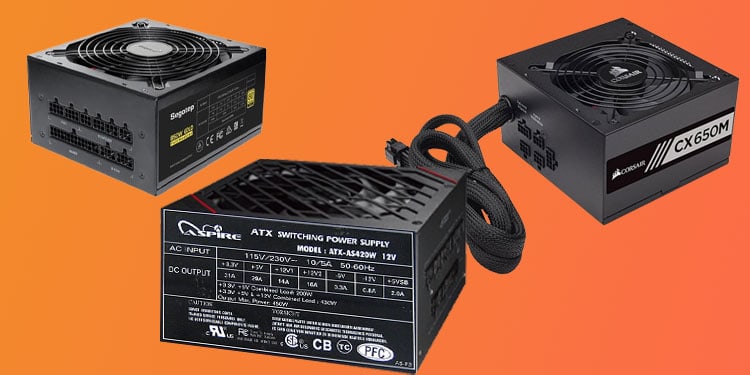
Now, for the detective work! Grab a flashlight (your phone's light works great) and carefully look for a sticker or label on the PSU itself. It’s often on one of the larger, more visible sides. What you're looking for is a number followed by the letter W or the word Watt. This number, often quite prominent, is your total maximum wattage. You might see a lot of other numbers for different voltage rails (like 12V, 5V, 3.3V), but for most purposes, you want the big, overarching wattage rating. For example, "650W" or "750 Watts Max Output." Sometimes it will list "Peak" and "Continuous" wattage; always go for the continuous rating – that's what it can reliably deliver.
It sounds simple, but trust me, contorting your neck and shining a light into a dark, dusty abyss can feel like an archaeological dig sometimes. But it's the most accurate way to know what your PSU is rated for.
Method 2: The "Let a Robot Do It" (Software) Way
Ah, for those who prefer their information digitally delivered, without the risk of inhaling ancestral dust. There are several software tools that can try to tell you your PSU's wattage. Programs like HWMonitor, CPU-Z, AIDA64, or even Speccy can sometimes identify your power supply's model number. Once it has the model number, it can often pull up its specifications, including its wattage, from online databases.
Here’s the catch, though: software doesn't actually measure the wattage directly from your PSU. It's more like your computer saying, "Hey, I see I'm connected to a 'SuperDuper WattsMaster 7000' power supply, and according to the internet, those are usually 700 watts." It's reliable if the software correctly identifies the exact model and if your PSU is a well-known brand with public specifications. If it's a generic or very old unit, the software might just shrug its digital shoulders.
It's a fantastic first step, especially if you're feeling particularly lazy or your case is sealed shut with the fury of a thousand suns. Just download one of these free tools, run it, and poke around for the "Power Supply" section. You might just get lucky!

Method 3: The "I'm a Power Detective, But Not for Capacity" Way (Watt Meter)
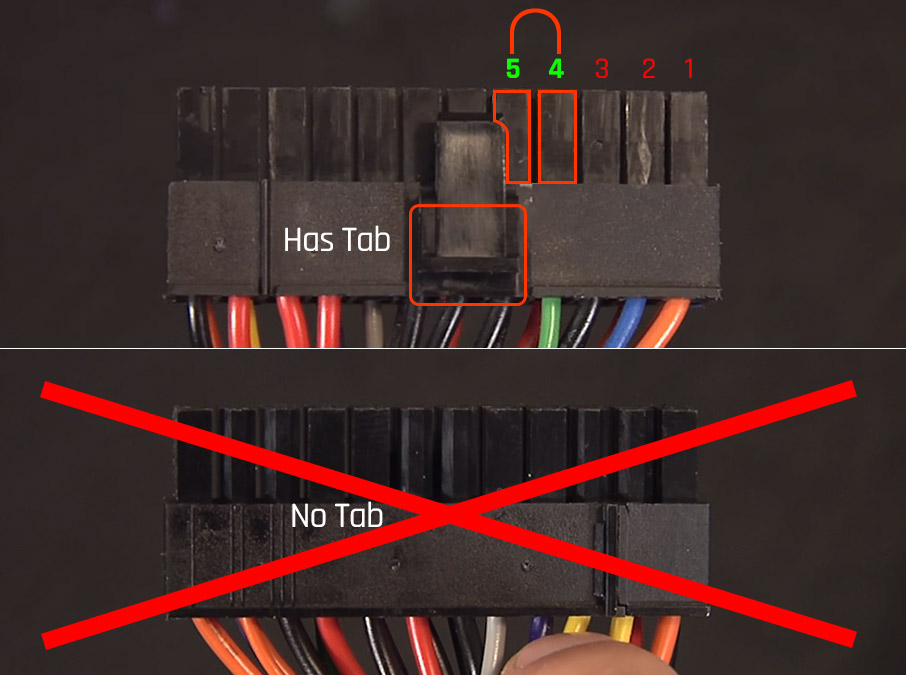
This is where things get a little spicy and involve a fun gadget you can actually buy! You can get a power consumption meter (like a Kill-A-Watt device) that plugs into your wall outlet. Then, your computer plugs into it. This little gizmo will tell you exactly how many watts your entire system is drawing from the wall at that very moment.
Now, here's the crucial distinction, and this is where it gets a bit like a surprising plot twist: This meter tells you your system's actual power usage, not your power supply's maximum rated capacity. Think of it this way: your car's speedometer tells you how fast you're going right now, but it doesn't tell you the maximum speed your engine could achieve. Similarly, a power meter tells you if your PC is currently using 150W, but your PSU might be a 600W unit. It's super useful for seeing if your PC is being a power hog, but it won't directly tell you the number on the PSU label.
It's a cool tool for understanding your electricity bill, though! And for knowing if your power supply is overkill for your current setup, perhaps leaving room for that future graphics card monster.
Uh-Oh, No Label? The "Guessing Game" Scenario
What if you've opened your PC, shone your brightest flashlight, and... nothing? No label, no model number, just a blank, anonymous metal box? This is rare with reputable brands, but it happens, especially with older, generic, or pre-built systems that cut corners. In this unfortunate scenario, you essentially have three options:
- Try to find any faint, debossed numbers or markings and desperately Google them.
- Assume it's probably on the lower end (300-400W) if it's old and generic, and plan to upgrade it if you want to add anything significant.
- Embrace the mystery and play a thrilling game of "Will my PC explode today?" (Disclaimer: Please don't actually do this. Upgrading to a known good PSU is always safer.)
And there you have it, folks! The thrilling saga of checking your power supply's wattage. Most of the time, a quick peek and read will solve the mystery, letting you get back to more important things, like deciding which snacks to pair with your gaming session. So go forth, armed with your newfound knowledge (and maybe a dusting cloth), and demystify that power supply once and for all!