Okay, picture this: You're in the zone. Ideas are flowing like a digital river, your iPad Pro is open, and you're about to sketch the masterpiece of your lifetime – or, you know, just a really good doodle of your cat wearing a tiny hat. Your Apple Pencil is poised, ready to translate pure genius onto the screen. You tap... nothing. You tap harder... still nothing. A quick glance at the battery widget reveals the dreaded zero percent. Panic sets in. The creative muse, a fickle creature, is already packing its bags and heading for the hills. We’ve all been there, haven't we? That moment of sheer frustration, followed by the inevitable question: "How do I even charge this thing?!"
It’s funny because, for such an intuitive device, how you power it up isn't always immediately obvious. Especially since Apple, in its infinite wisdom, decided to give us a few different ways, depending on which generation of the magical stylus you happen to wield. So, let’s demystify this, shall we? Grab a snack, because we’re about to dive into the wonderful, sometimes quirky, world of Apple Pencil charging.
The OG: Apple Pencil (1st Generation)
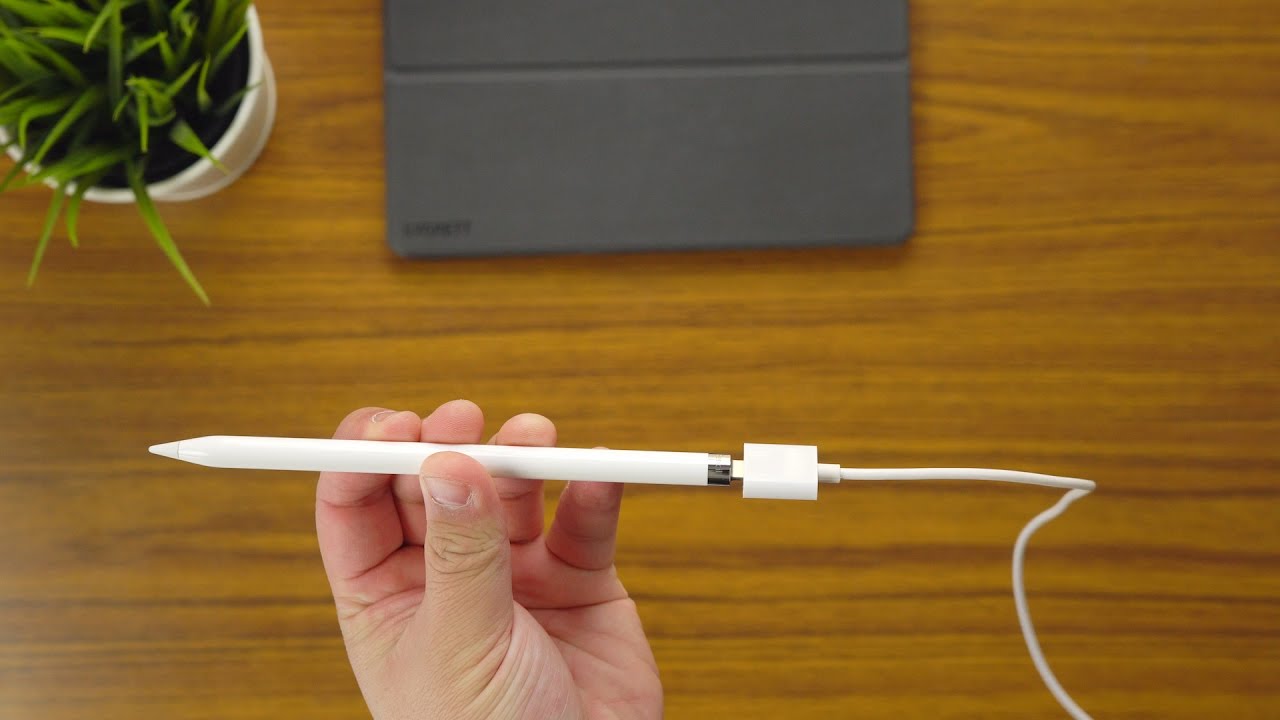
Ah, the first-gen Pencil. This one has a bit of a... flair for the dramatic. If you own this bad boy, you’ll know the infamous charging method. You simply pull off its magnetic cap (try not to lose it, seriously, it’s tiny!), revealing a Lightning connector. Then, with a certain level of commitment, you plug it directly into the Lightning port on the bottom of your iPad. Yes, that’s right. It sticks straight out, looking a bit like a tiny, digital flagpole waving in the wind. It charges surprisingly fast this way, but let’s be honest, it feels a little precarious, doesn't it? Like one wrong move and snap! There goes your charging port.
But wait, there’s more! For those who aren't quite ready to live life on the edge, Apple also included a tiny adapter in the box. This little gadget lets you connect your Pencil to a standard Lightning cable (the one you use for your iPhone or iPad) and then plug it into a wall charger. Much safer, much less likely to snap off, and frankly, a much more aesthetically pleasing option if you ask me. Definitely use that adapter for peace of mind, trust me on this one.
The Sleek & Seamless: Apple Pencil (2nd Generation)
Now, for you lucky ducks with the second-generation Pencil, life is a little bit simpler. Apple learned a few things, and this iteration is all about elegance and convenience. Charging the 2nd-gen Pencil is almost ridiculously easy. You just... snap it magnetically onto the flat edge of your compatible iPad (that's the iPad Pro 11-inch or 12.9-inch 3rd generation and later, or the iPad Air 4th generation and later, and iPad mini 6th generation). That’s it! No caps, no ports, no adapters needed.
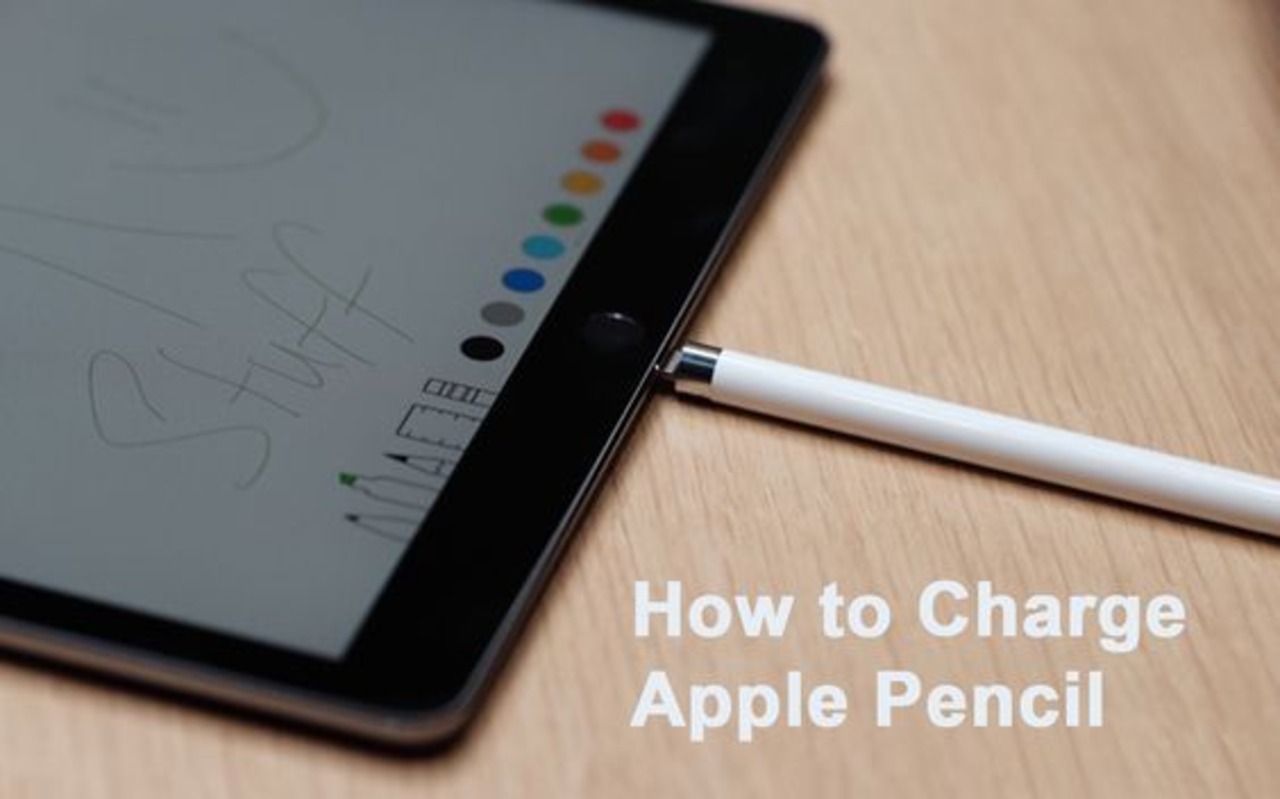
It charges wirelessly, magically adhering to the side of your iPad like a loyal companion. Not only does it charge, but it also pairs automatically this way. It’s genuinely one of those "why didn't they think of this sooner?" features. Seriously, if you've only experienced the first-gen charging, this feels like pure wizardry. And guess what? It stays there, meaning it’s always topped up and ready to go when inspiration strikes. No more dead Pencils mid-doodle!
The Modern Kid: Apple Pencil (USB-C)
Then, we have the newest entry to the lineup: the Apple Pencil (USB-C). This one is a bit of a blend, taking cues from both its predecessors. It's designed to work with iPads that have a USB-C port (which is most newer iPads these days). To charge it, you'll find a sliding cap at the top (similar to the 1st gen's but it slides, it doesn't pop off entirely) that reveals a USB-C port. You simply slide that cap, plug in a USB-C cable, and connect it to your iPad's USB-C port, or a wall adapter.

It's straightforward and practical. What's interesting about this one is that while it attaches magnetically to the side of your iPad for storage (just like the 2nd-gen), it doesn't charge wirelessly when it's magnetically attached. You'll need that cable connection for power. So, it's got the magnetic convenience for storage, but the direct-port charging for juice. A bit of a hybrid approach, don't you think?
Quick Tips for a Happy Pencil
- Check the Battery Widget: Always keep an eye on your Pencil's charge level via the battery widget on your iPad. Swipe right on your Home Screen or Notification Center to see it.
- Don't Let it Die: Just like most modern batteries, lithium-ion ones prefer to stay somewhat charged. Letting your Pencil completely die and sit for long periods can shorten its overall lifespan.
- Know Your Generation: Seriously, this is key. If you're unsure which Pencil you have, check the model number on the pencil itself (it's usually tiny and printed near the tip or on the flat edge), or check your iPad's settings under Bluetooth when the Pencil is connected.
So, there you have it, folks! Charging your Apple Pencil really isn't rocket science once you know which generation you're rocking. Whether you're doing the "stick-it-out-of-the-iPad" dance, enjoying the seamless magnetic snap, or plugging in with USB-C, keeping your creative tool powered up means you're always ready when inspiration strikes. Now go forth and create, knowing your Pencil won't leave you hanging!

